
How to Connect Instagram to Facebook and Then Connect It to Your Anty Connect Account
Follow these steps in order. First, connect your Instagram Business account to Facebook. Then make sure LeadConnector has the permissions needed for our automation to work. After that, connect Facebook inside your Anty Connect account so we can respond to your messages.
Part 1: Connect Your Instagram Business Account to Facebook
Go to your Facebook Page
Open your business Facebook Page.
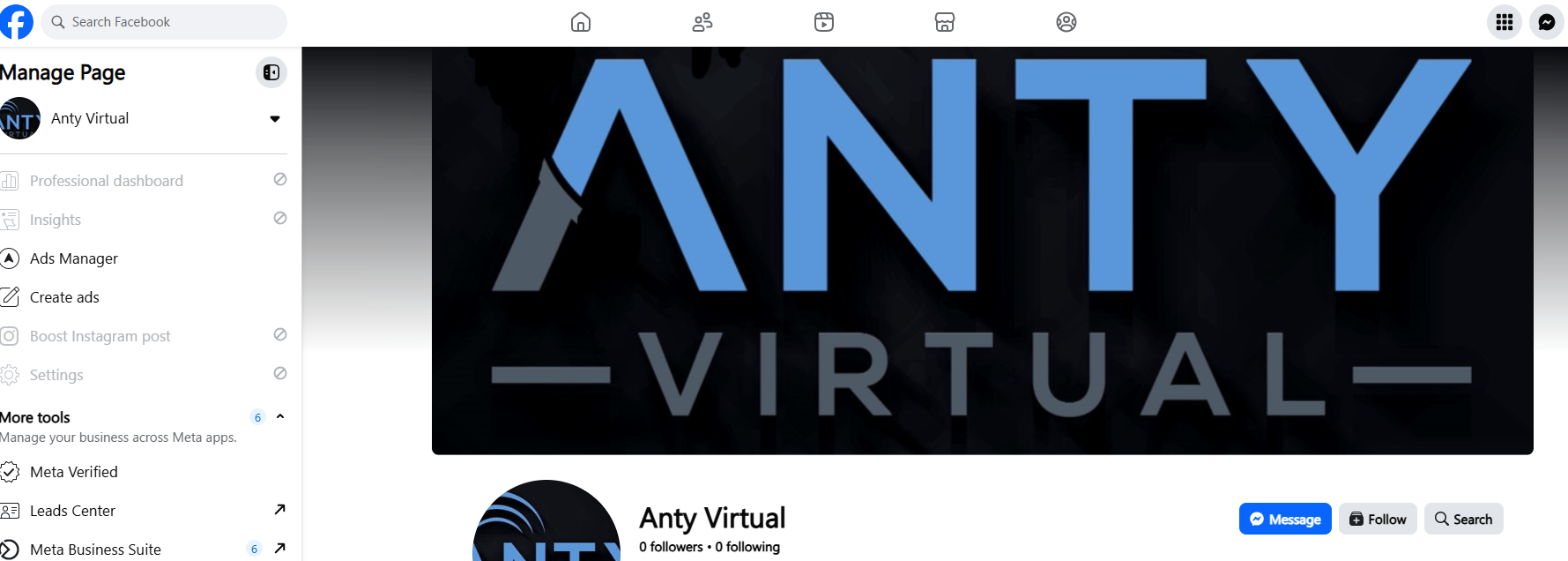
Scroll down to Meta Business Suite
On the left side of your Facebook Page, scroll down until you see Meta Business Suite.
Click Meta Business Suite
Open Meta Business Suite for the business page you want to use.
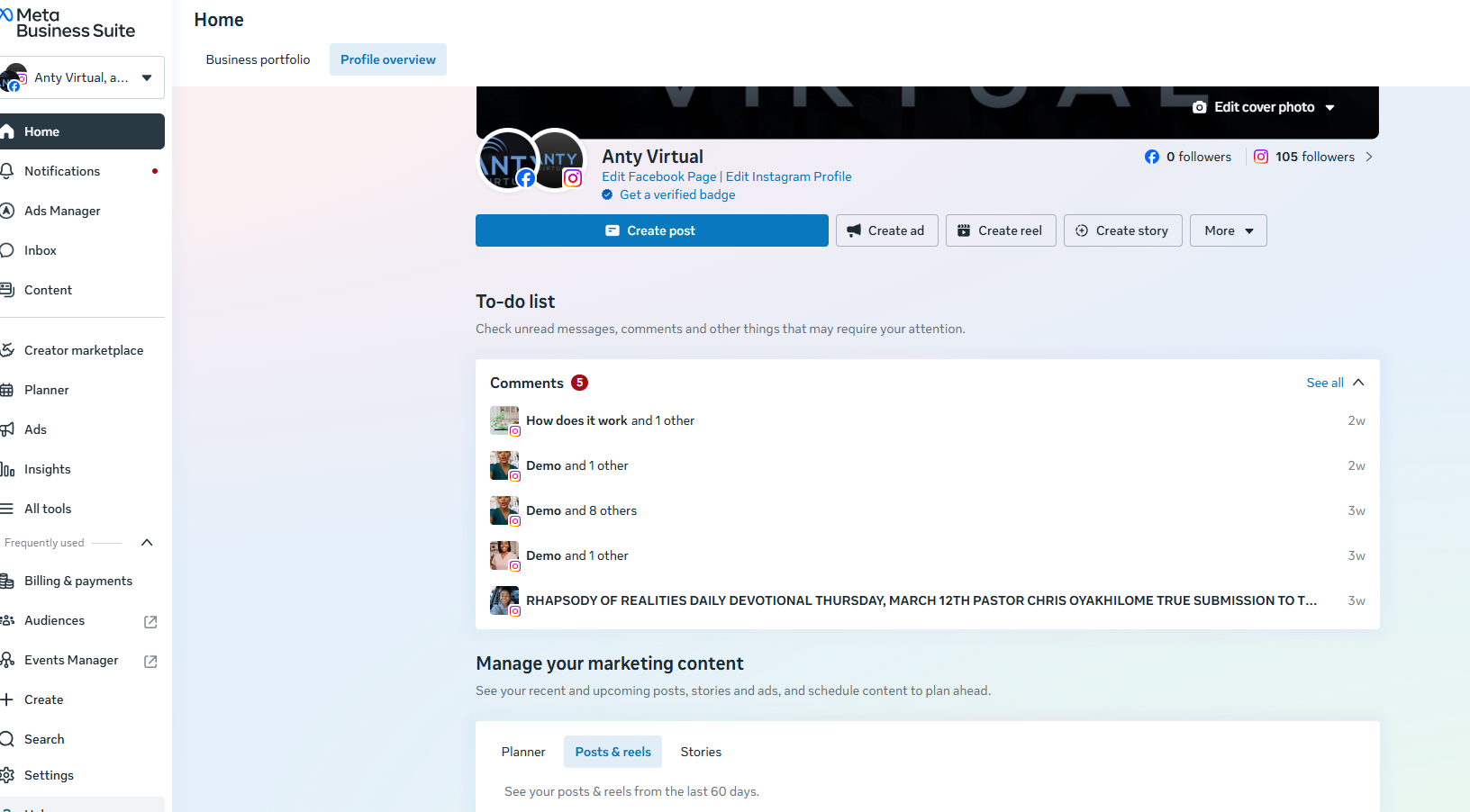
Go to Settings
Inside Meta Business Suite, scroll down and click Settings.
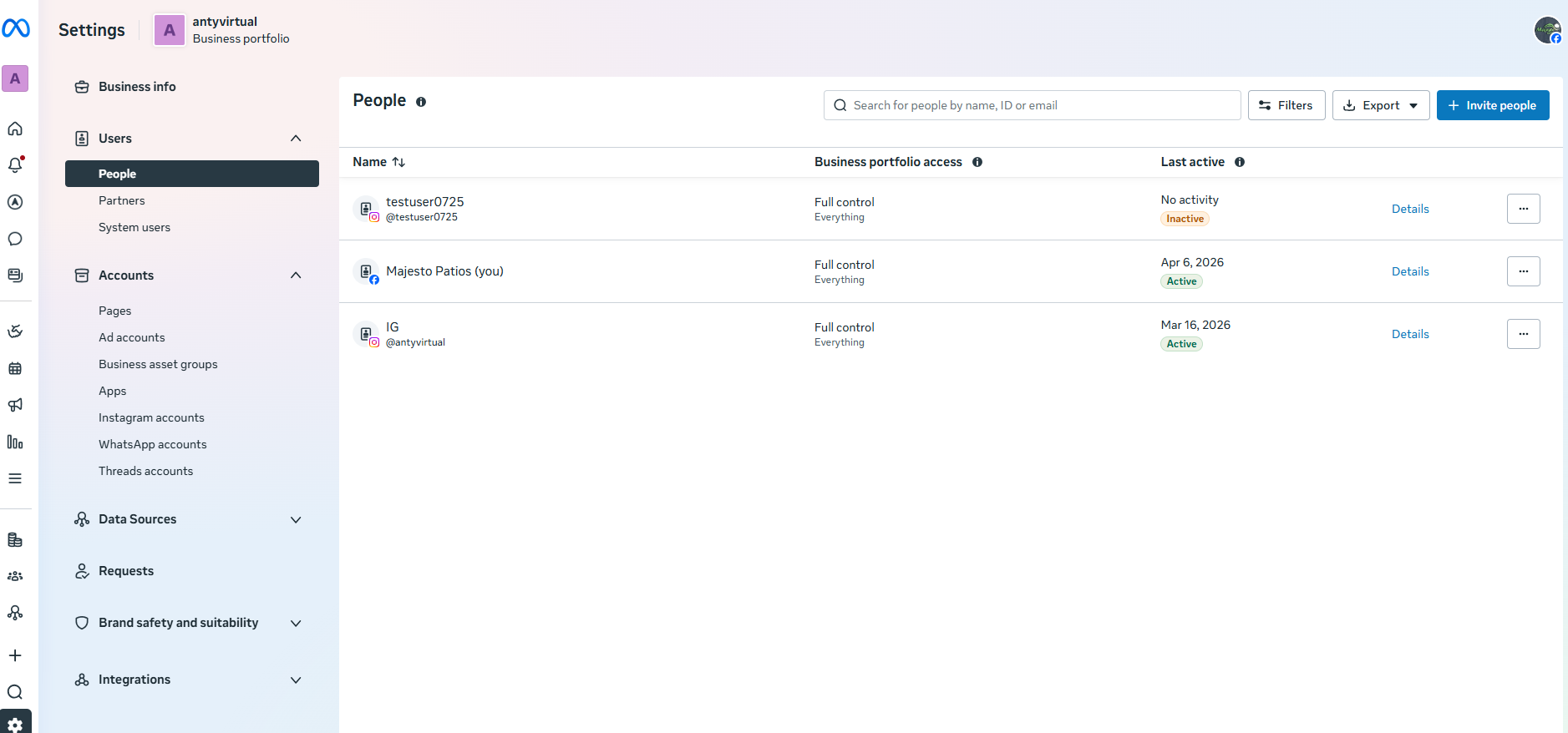
Click Accounts, then Instagram accounts
In Settings, click Accounts, then scroll down and click Instagram accounts.
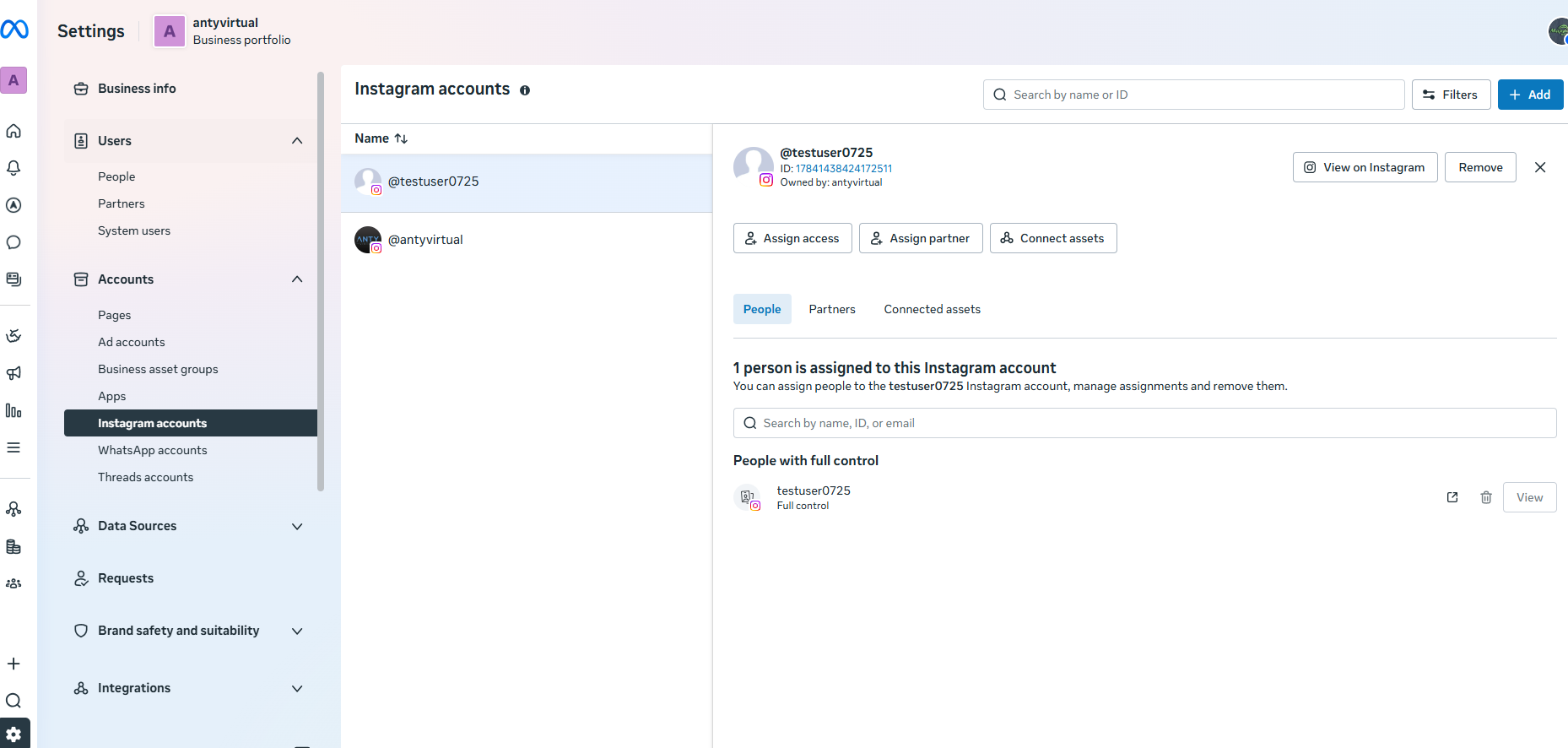
Click Add
In the top-right corner, click Add to add your Instagram Business account.
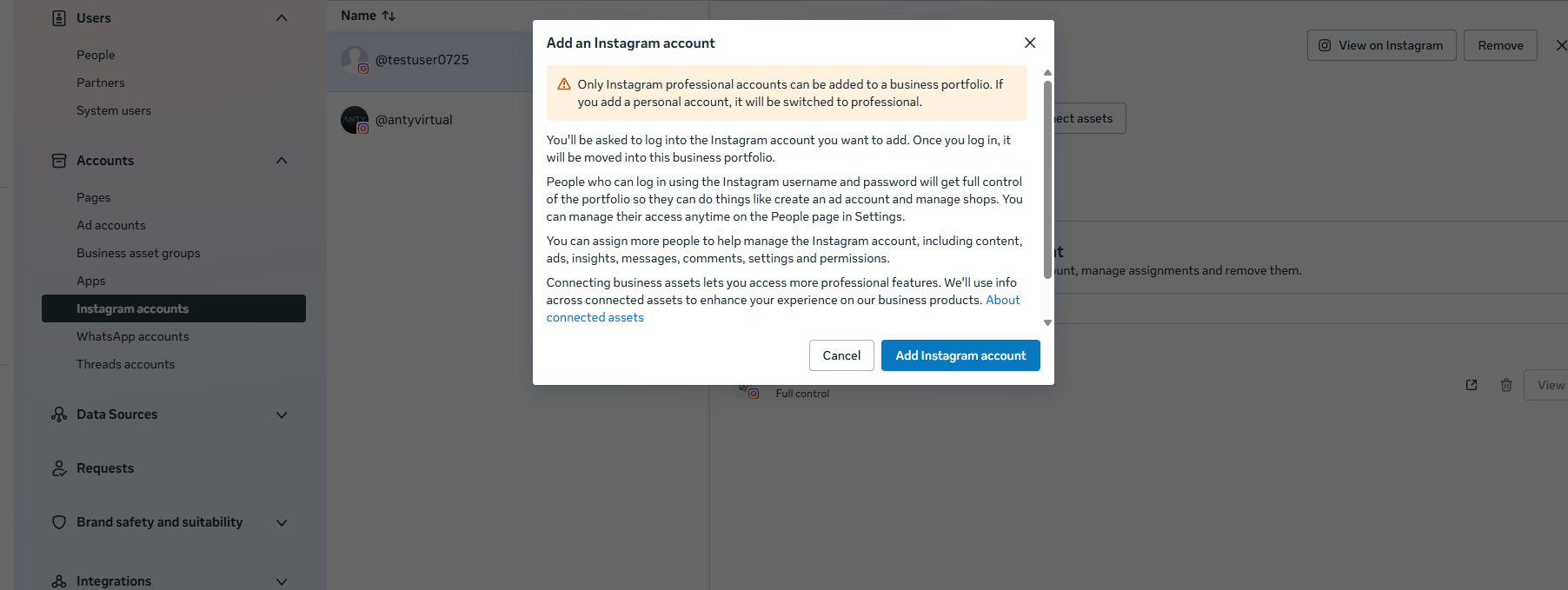
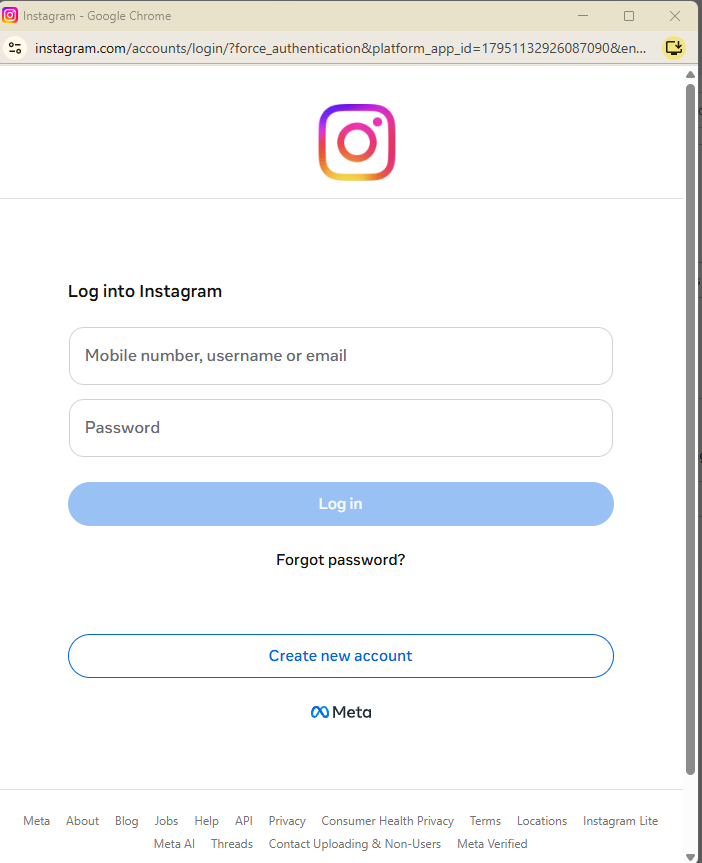
Log into Instagram and add your business Instagram account
You will be asked to log into your Instagram account. Enter the login details for your business Instagram account and complete the process to add it to Meta Business Suite.
Next: Make Sure Instagram Has the Full Access Needed for Our Automation to Work
These next steps make sure LeadConnector has the permissions needed so Anty Connect can work properly.
Go to your Facebook page
Open your Facebook page.
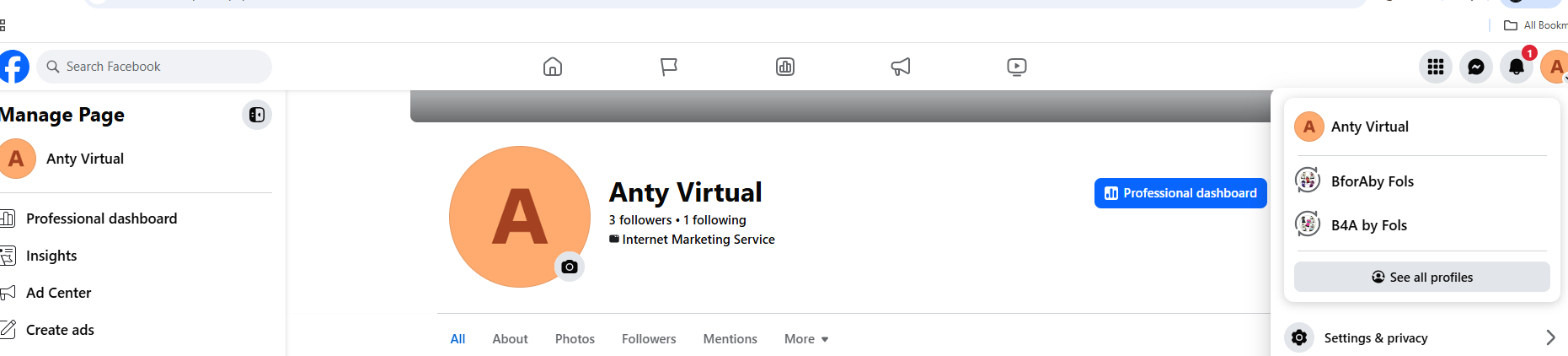
Click Account on the top right corner
On the top right side of the page, click Account.
Go to Settings & Privacy
That opens a window. Click Settings & Privacy.

Click Settings
Inside the menu, click Settings.
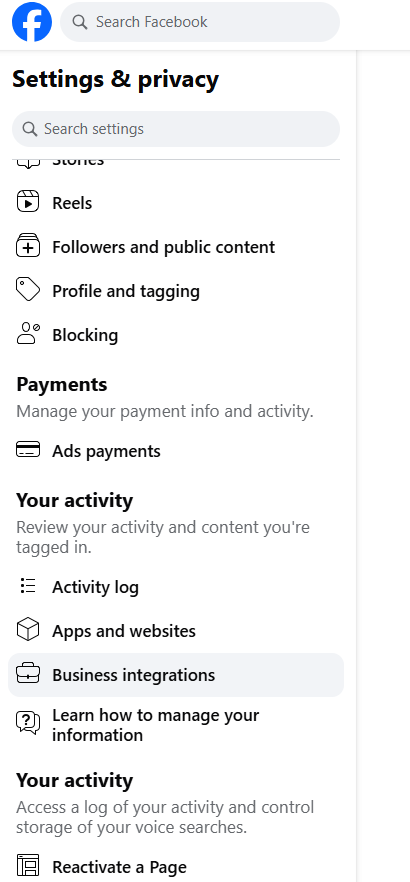
Find Business Integrations
Scroll down on the page and look on the left panel for Business Integrations.
Open LeadConnector permissions
Click Business Integrations, then click View and Edit on LeadConnector.
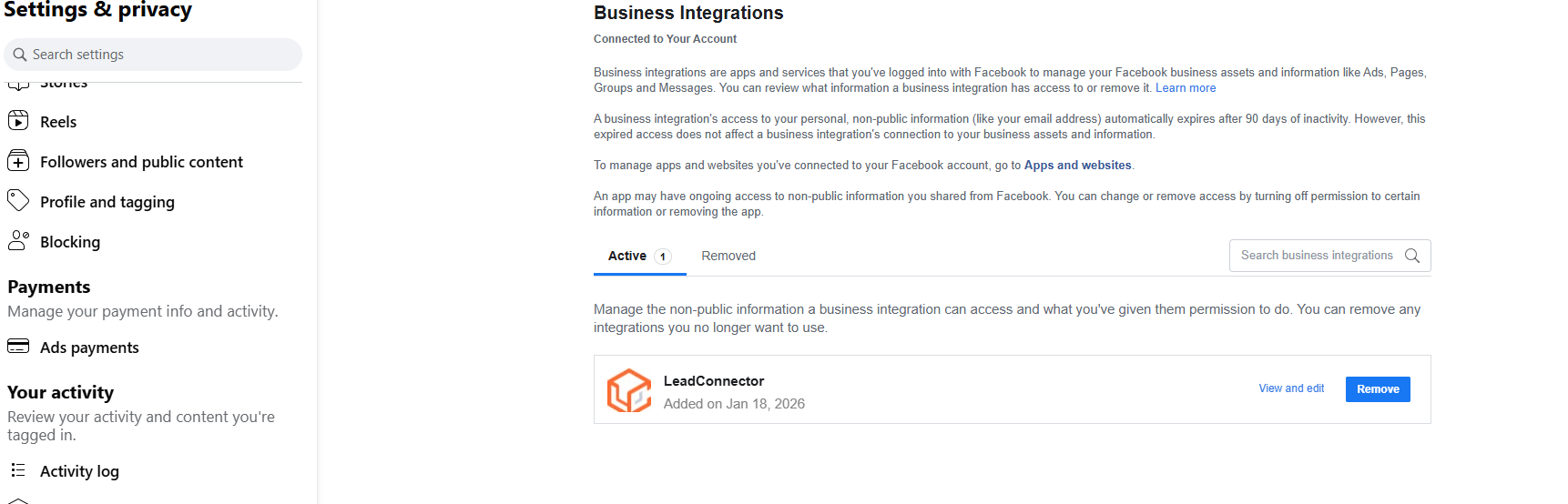
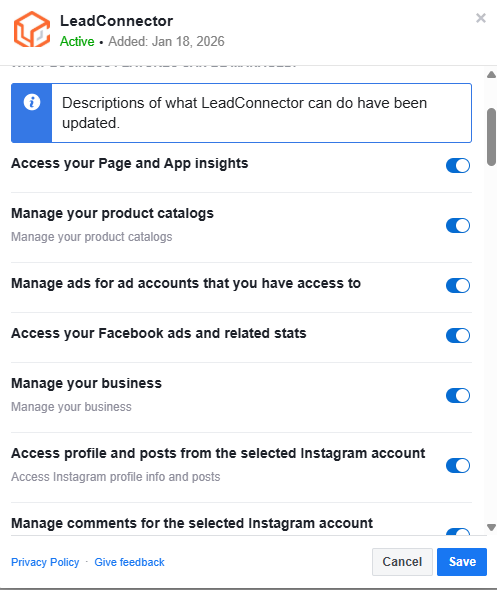
Make sure LeadConnector is Active and all permissions are granted
Make sure LeadConnector says Active and that all permissions are granted. Then click Save.
Part 2: Connect Facebook Into Your Anty Connect Page
This is how we respond to your messages.
Go to Settings in your Anty Connect account
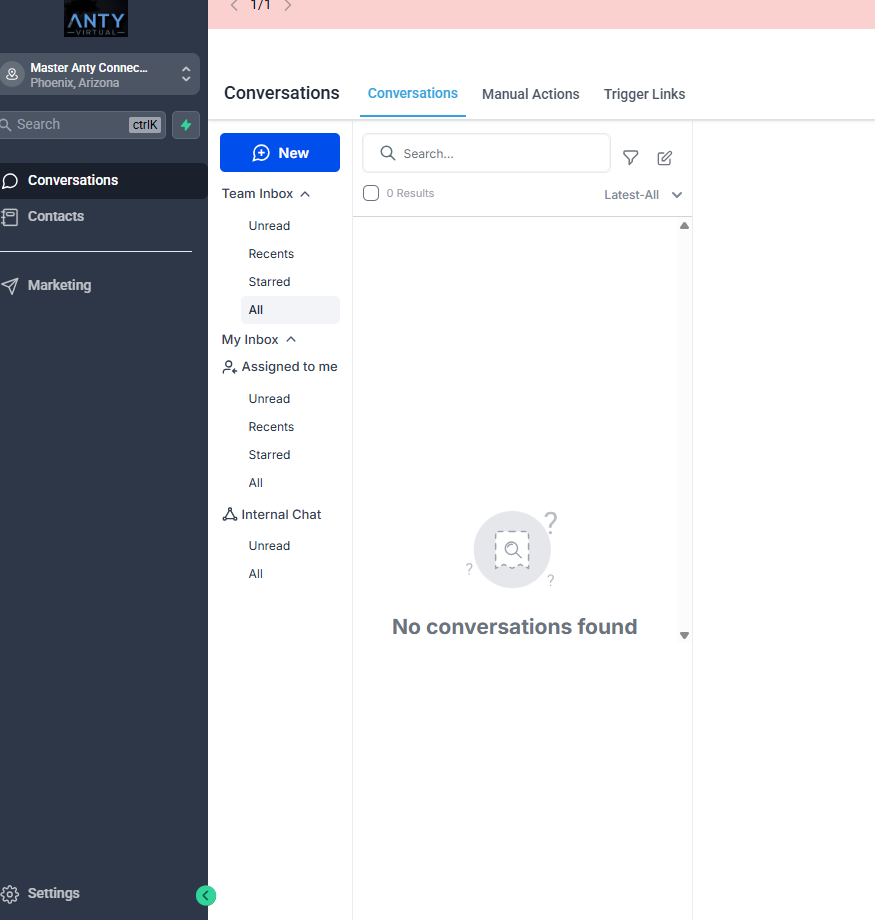
Once you log into your account, go to the bottom left side of the screen and click Settings.
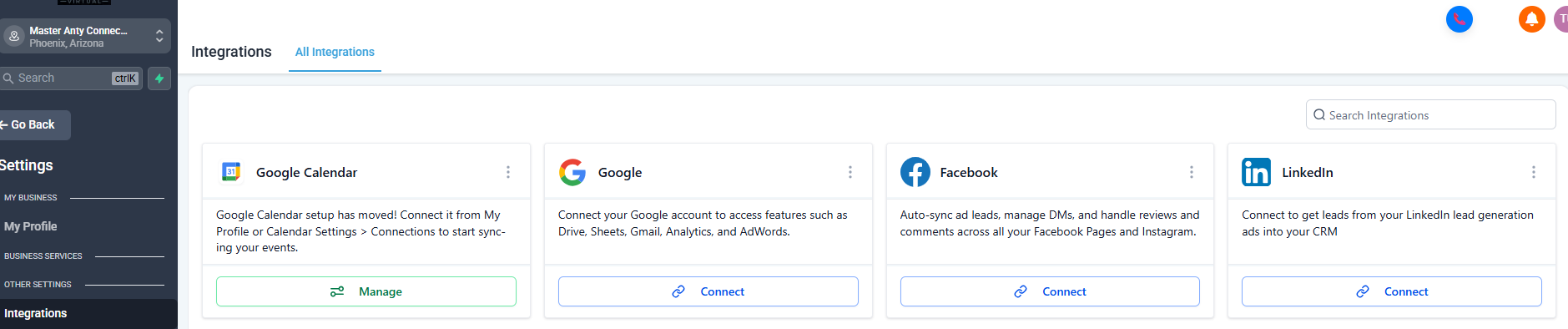
Click Integrations, then connect Facebook
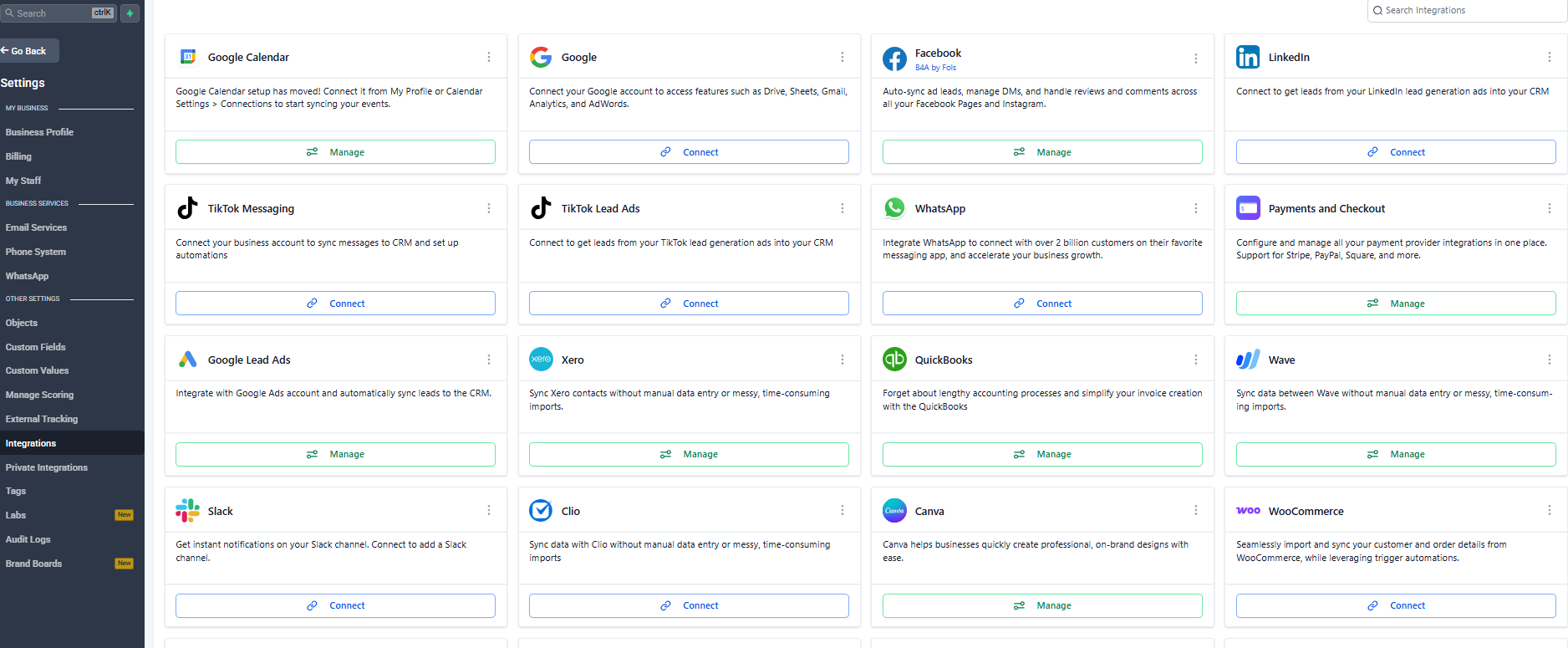
That takes you to a window. Click Integrations, then look for Facebook and click Connect to connect your Facebook account.

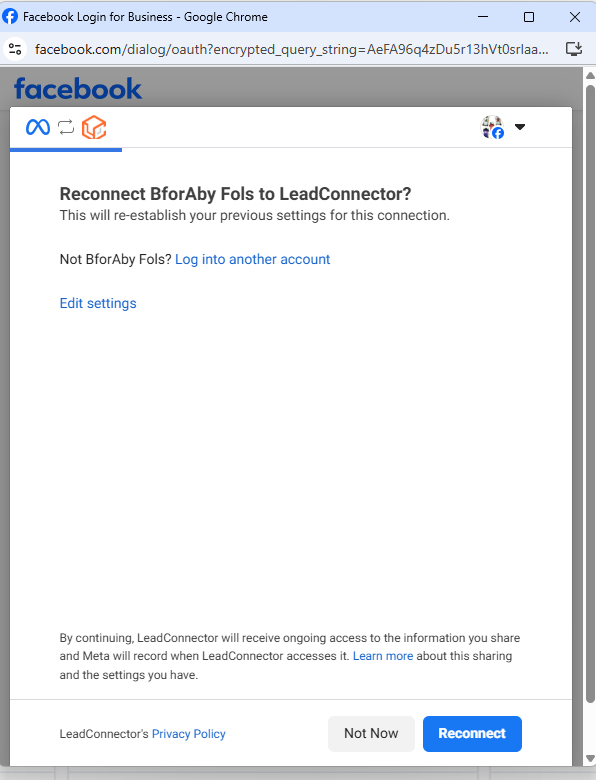
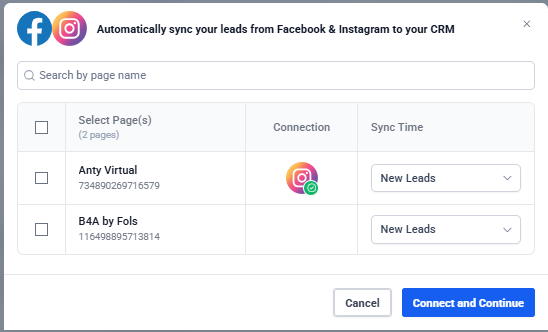
Connect your Facebook Page and Instagram, then confirm setup is complete
Connect the Facebook page, connect the Instagram you want to add, then click Connect & Continue.
This takes you back to the integrations page. You should now see the button changed to Manage in green, and your Facebook name showing under Facebook in the panel. Now you are done.
Notify Us You Finished Setup
Complete all 17 steps above and check each box to unlock the completion form.